How to register and install iOS 26, iPadOS 26, and macOS Tahoe Sequoia Developer/Public Beta on your iPhone, iPad, and Mac.
📱 A. iPhone – Install iOS 26
✅ Step 1: Check Compatibility
Ensure your iPhone is compatible. iOS 26 supports:
- iPhone 11 and newer
🧑💻 Step 2: Register for Apple Developer or Public Beta
Option 1: Developer Beta (Available Now)
- Visit developer.apple.com on Safari.
- Tap Account and Sign in with your Apple ID.
- Agree to the terms and conditions (free account is sufficient for beta access).
- No paid developer account is required for over-the-air beta updates.
Option 2: Public Beta (Available July 2025)
- Visit beta.apple.com on Safari.
- Tap Sign up and log in with your Apple ID.
- Agree to the terms and wait for public beta availability.
💾 Step 3: Backup Your iPhone
- Via iCloud: Settings → [Your Name] → iCloud → iCloud Backup → Back Up Now.
- Via Mac:
- Connect iPhone → Open Finder → Select iPhone → Choose Back Up Now.
- Use Encrypt Backup for passwords and Health data.
⚙️ Step 4: Enable Beta Updates
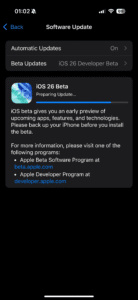
- Go to Settings → General → Software Update → Beta Updates.
- Select either:
- iOS 26 Developer Beta (if using developer.apple.com)
- iOS 26 Public Beta (if using beta.apple.com)
- Go back and tap Download and Install to start the update.

Screenshot

💻 B. Mac – Install macOS 15 Sequoia
✅ Step 1: Check Compatibility
Compatible Macs include:
- iMac 2019 and later
- MacBook Pro 2018 and later
- MacBook Air 2018 and later
- Mac mini 2018 and later
- Mac Studio and Mac Pro 2019+
🧑💻 Step 2: Register Your Mac
Use either:
- developer.apple.com
- beta.apple.com (from July 2025)
💾 Step 3: Backup Your Mac
Use Time Machine or clone your disk with apps like Carbon Copy Cloner.
⚙️ Step 4: Enroll Your Mac
- Open System Settings → General → Software Update.
- Click Beta Updates.
- Choose either:
- macOS Sequoia Developer Beta
- macOS Sequoia Public Beta
- Once selected, return and click Update Now to download and install.
💡 Optional: Install via macOS Installer (.pkg)
For clean installation or dual-boot:
- Download macOS 15 Beta from developer.apple.com.
- Create a USB installer using Terminal.
- Boot Mac with Option key and select USB to install.
📱 C. iPad – Install iPadOS 26
✅ Step 1: Check Compatibility
Supported iPads:
- iPad Pro (M1 & M2 models and newer)
- iPad Air (M1 and newer)
- iPad mini 6th Gen
- iPad 10th Gen
🧑💻 Step 2: Register for Developer or Public Beta
Same method as iPhone:
- Developer: developer.apple.com
- Public: beta.apple.com
💾 Step 3: Backup Your iPad
Use iCloud or Finder to create a backup.
⚙️ Step 4: Enable Beta Updates
- Go to Settings → General → Software Update.
- Tap Beta Updates, select:
- iPadOS 26 Developer Beta
- or iPadOS 26 Public Beta
- Go back and download the update.
🧠 Pro Tips
- Always backup before installing any beta.
- Expect bugs — avoid on mission-critical devices.
- You can downgrade to stable versions using IPSW and Finder/Mac Recovery Mode.
- Some apps (banking, VPN, games) may not work until updated.
🎥 Want a Video Walkthrough?
You can watch this step-by-step guide for a visual explanation.
Author Profile

Latest entries
 Tips & TricksNovember 7, 2025master_not_discovered_exception in Palo Alto Networks Log Collector
 Tech NewsAugust 17, 2025Malware Analysis For Remcos Remote Access Trojan (RAT)
 Tech NewsJune 10, 2025How to register and install iOS 26, iPadOS 26, and macOS Tahoe
 Tech NewsJune 1, 2025How to Install Cisco and Juniper Images in EVE-NG


2 Comments
All About 5G: The Future of Wireless Technology · August 2, 2025 at 10:26 am
[…] Qualcomm and Samsung focus on hardware—Qualcomm with modems and Samsung with routers. […]
GNS3 On Mac Silicon M1/ M2 / M3 Installation Guide · August 2, 2025 at 10:36 am
[…] conclusion, you now have a fully functional GNS3 lab running on a Mac with an M1, M2, or M3 chip — all thanks to OrbStack and some smart […]